
Beyond Experimental app studio

Powerful tools.Direct control.

A sketch, a voice, a track or a matchup. New ways to create and explore.

iPhone + iPad · Your ComfyUI host

Comfy Companion

Your ComfyUI host. In hand.

Studio01 / 05

Captured workspace

Image workspace

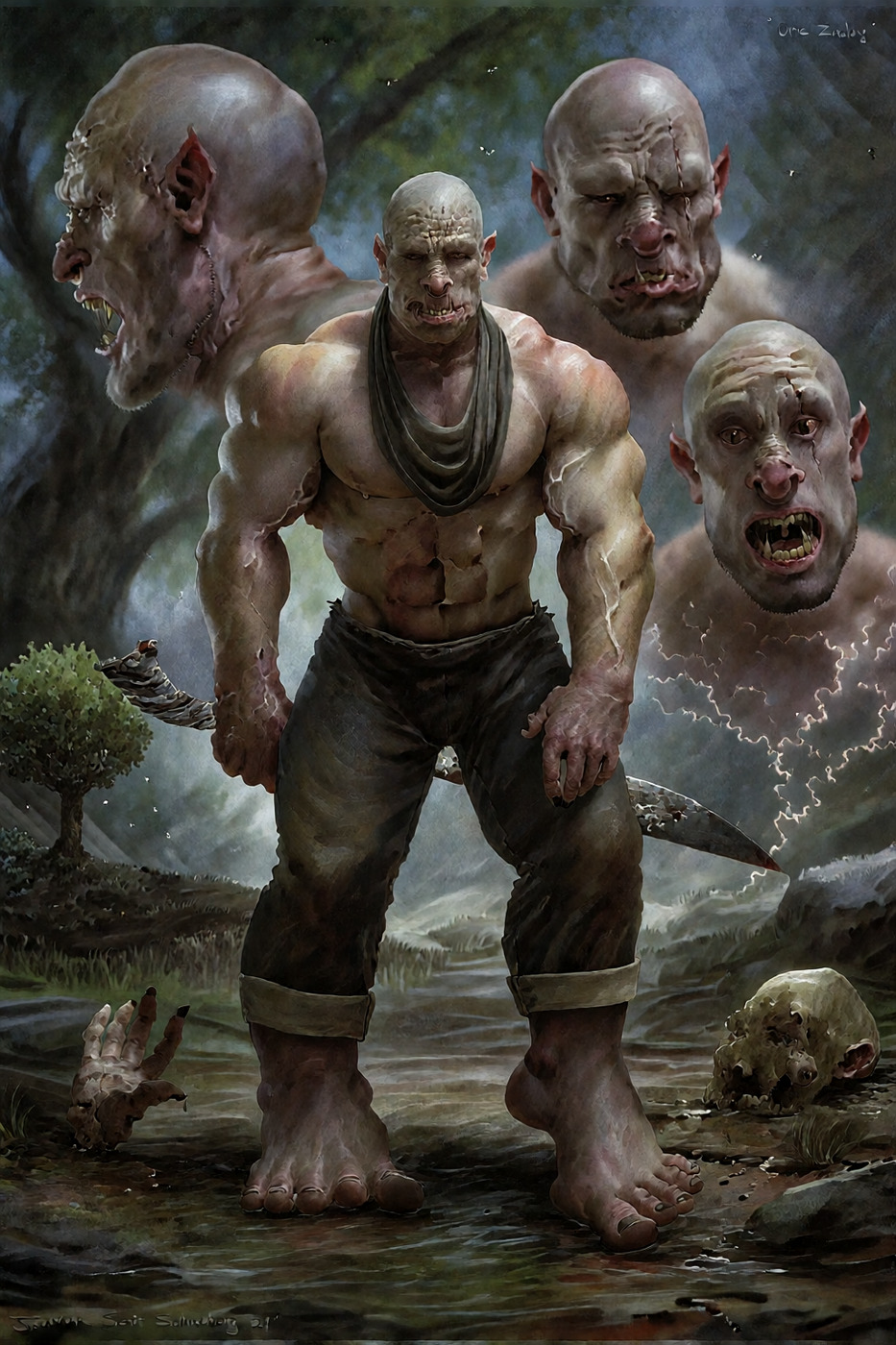
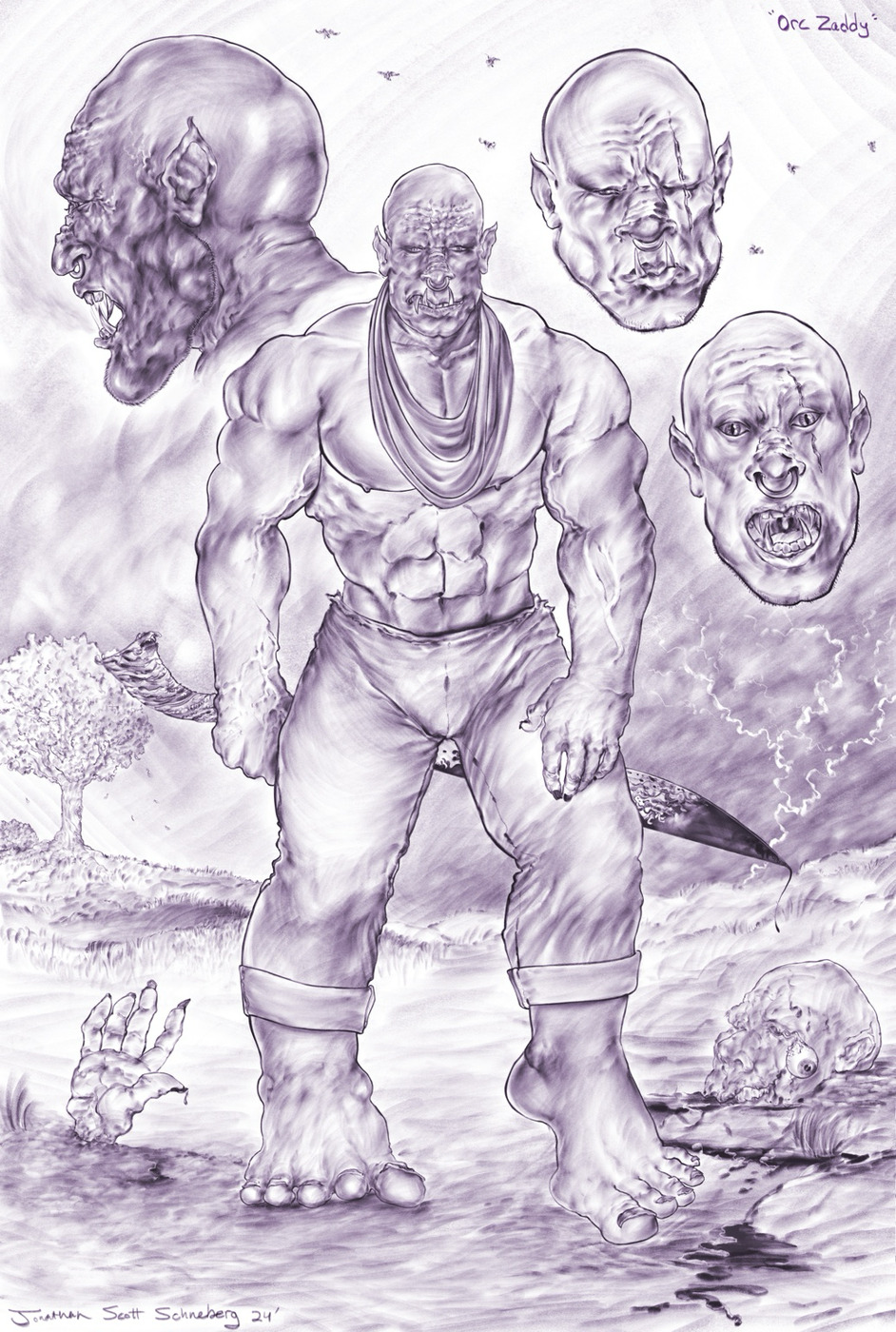
Captured app controls · Illustrative artwork

Give an idea its first shape.

Begin with a sketch, prompt or reference in your configured host workflow.

Original captured app controls

Illustrative artwork · Captured workspaceInspect full workspace

Choose the next change.

Pick a style, edit the prompt and adjust Change from Touch to Fresh.

Original captured app controls

Illustrative artwork · Captured workspaceInspect full workspace

Keep exploring.

Change the prompt or add a reference to guide another interpretation.

Original captured app controls

Illustrative artwork · Captured workspaceInspect full workspace
About this demo

Real app controls with staged artwork, not measured generated output or processing speed. Models and results depend on your configured ComfyUI host.

Motion Studio setup

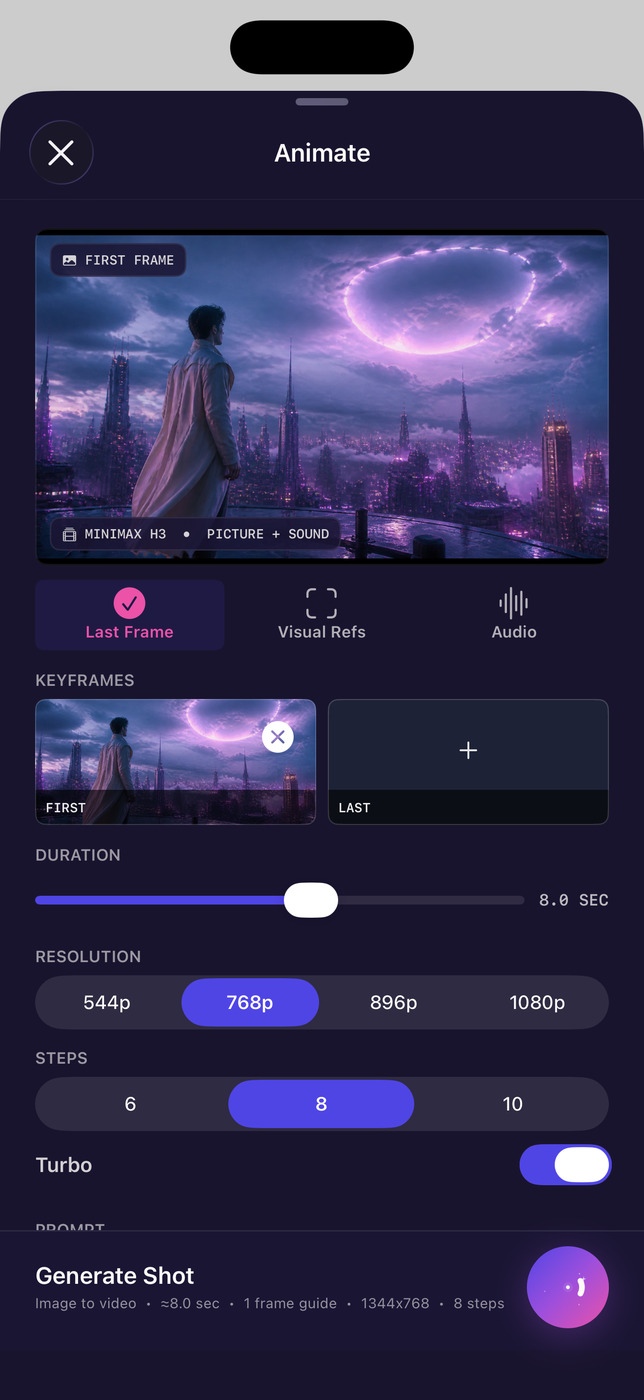
Captured Motion setup · Illustrative artwork

Set the shot.

Choose keyframes, duration and output settings for a shot on your configured host.

View full capture

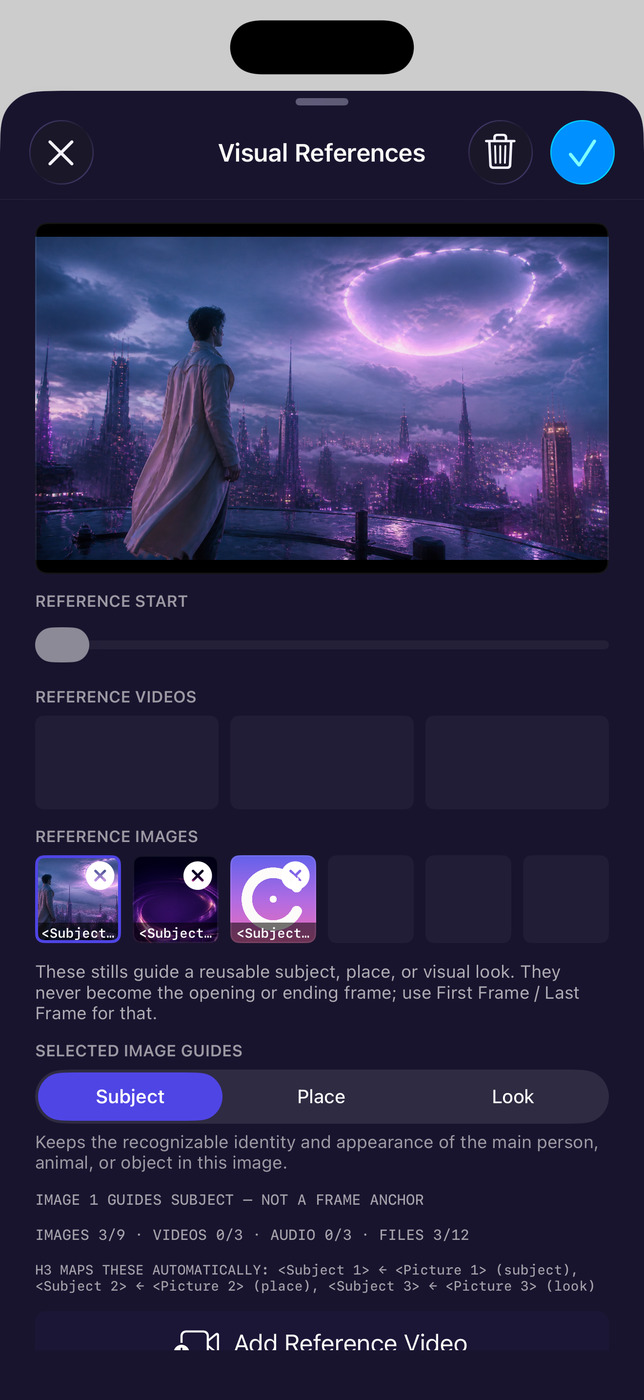
Give references a role.

Guide the subject, place or visual look with images. First and last frame anchors are separate.

View full capture

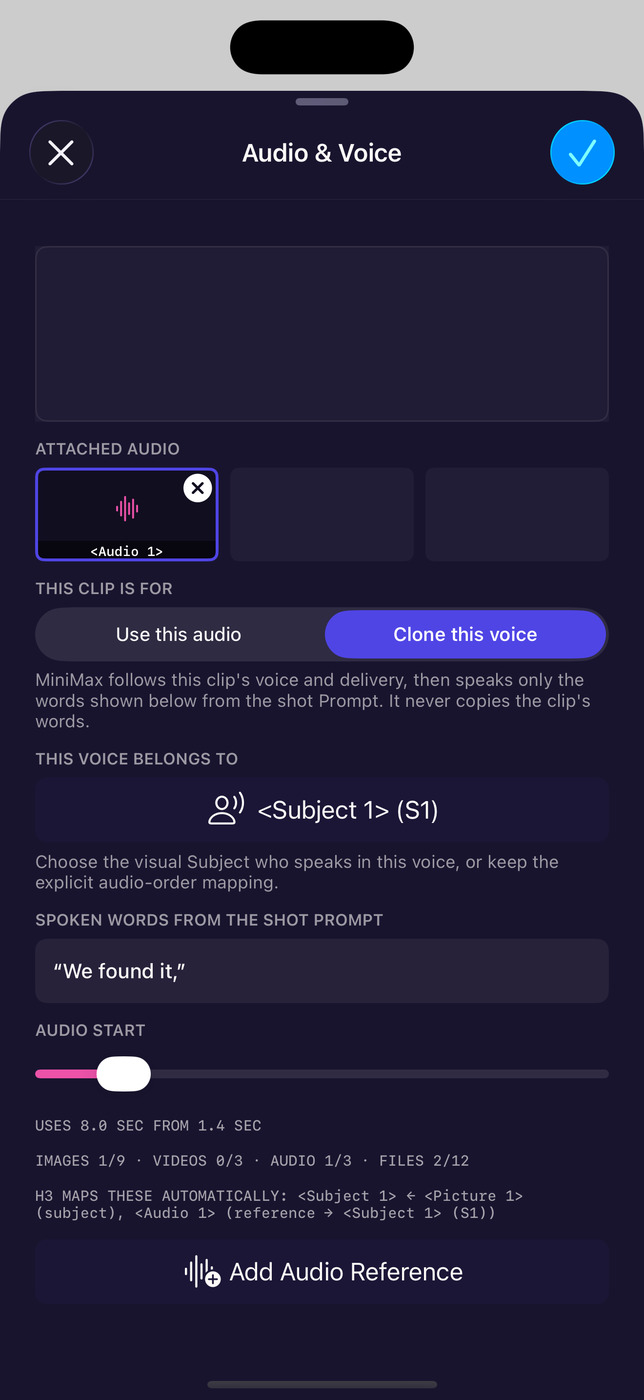
Place the voice.

Assign audio to a subject and place the spoken line in time. This captured setup uses “We found it.”

View full capture
Illustrative first frameInspect
About this demo

Native build 272 setup screens, not completed motion output. Engines and results depend on your configured ComfyUI host.

Move from an image to a shot.

Develop a sketch, prompt or reference through your own ComfyUI host. Motion Studio brings frame anchors, reference roles and voice timing into the shot setup.

For creators with a compatible ComfyUI host. Your installed models and hardware determine the available tools.

Explore Motion Studio setup

Comfy Companion details

Who it’s for

For developing sketches and planning scenes through your own ComfyUI host.

What you can do.

  • Develop an image.

    Start with a sketch, prompt or reference. Generate, edit and refine through the image engines installed on your host.

  • Set up a moving shot.

    Bring frames, visual references, audio and duration together in Motion Studio. Available video tools depend on your configured engines and compatible hardware.

  • Organize in Director.

    Keep projects, cast and world assets, shots and preferred takes together in the Director workspace.

Explore the captured workspaces

Before you start.

Availability

Release details pending

Store access, pricing and release dates will be added when confirmed.

Bring your host
An iPhone or iPad and your own compatible ComfyUI host. Installed model packs and hardware determine which tools are available.
Where inputs go
Sketches, prompts and references are sent to the ComfyUI host you configure.
Optional cloud costs
RunPod setup uses your own account. RunPod bills compute and storage separately; retained network-volume storage can still incur charges when compute is stopped.
Recorded evidence
Shot setup

Motion Studio.

Captured setup controls · Illustrative artwork.
Frames, references, audio and duration. These screens show setup, not a completed film.

View the full Motion Studio screen
Motion Studio frame, duration, resolution and step controls
Native build 272 interface · Illustrative campaign/reference artwork. Setup controls, not completed motion output.
Open full-size screen
Visual references: subject, place, look
Motion Studio reference-image roles in the captured app
Native build 272 interface · Illustrative campaign/reference artwork. Setup controls, not completed motion output.
Open full-size screen
Audio: source, voice and timing
Motion Studio attached audio, subject assignment and timing controls
Native build 272 interface · Illustrative campaign/reference artwork. Setup controls, not completed motion output.
Open full-size screen
What this preview shows

The captures show real app controls with staged illustrative artwork. They do not establish measured generation output or processing speed. Available engines and results depend on your configured ComfyUI host.

iPhone · On-device models

Aftertone

Record. Write. Change the voice.

Studio02 / 05

Listen to the transformation

Recording conversion

Speech from text

Give a written line a voice.

Hear speech from text

THE WRITTEN SENTENCE

“Please leave the package by the kitchen door. I will call you after lunch.”

The same written sentence, spoken in the selected voice. These are recorded outputs, not live generation.

Recorded development outputs. All four voices are original synthetic characters. Processing time is not represented.

Give a written line a character voice.

Use a recording for voice conversion, or start with a written line for speech. Listen to the selected result before sharing from the app.

For character-voice recordings on iPhone. Models run on your device in an offline workflow; downloads and device requirements vary by feature.

Hear speech from the same sentence

Aftertone details

Who it’s for

For turning a recording or a written line into a character voice.

What you can do.

  • Convert a recording.

    Record or import audio, choose a reference voice, then compare the conversion with your original and share the result.

  • Create speech from text.

    Type a line and choose a reference voice. A separate on-device engine creates speech you can listen to and share.

Hear all four original voices

Before you start.

Availability

Release details pending

Store access, pricing and release dates will be added when confirmed.

On your iPhone
Recording conversion and speech from text use models running on your device.
Feature requirements
Different features have different iOS, memory, model-download and speech-asset requirements. Final compatibility is pending.
Recorded audio
Voice conversion is an offline workflow. It does not change live calls.
Recorded evidence
Recording conversion

Same recording. Another voice.

Recorded development outputs · Original synthetic character voice. Processing time is not represented.

Experimental delivery controls

Captured development interface. Delivery direction is experimental and results are not guaranteed.

View the full app screen
What this preview shows

The recording, converted voices, and text-to-speech samples are actual development outputs. The full audition features four original synthetic character voices. Processing time is not represented. Delivery-direction controls in the development interface remain experimental.

iPhone + iPad · Audio + touch

IOSAMP

Play music. Shape its world.

Studio03 / 05

Explore sound + touch.

Choose a visual world.

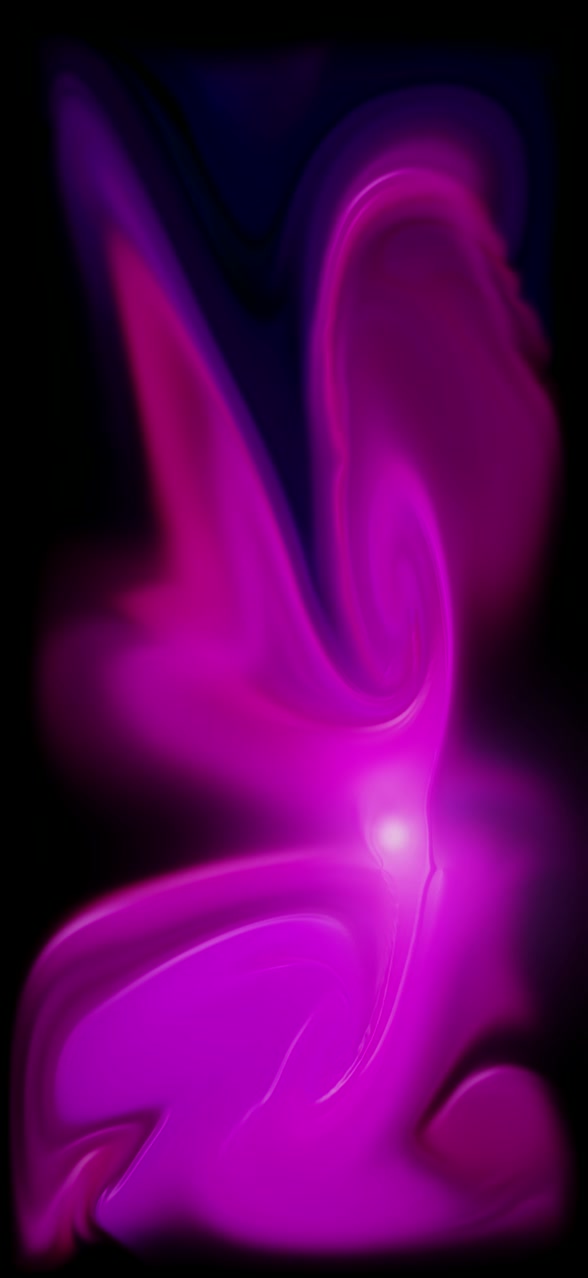
Touch Reactor recording

Simulator recording · Test sound + scripted gestures

Shape a world with touch.

Touch Reactor’s renderer responds to scripted gestures in this recording.

Inspect full recording
About this recording

20.4-second Simulator recording · Arranged test audio and scripted two-finger gestures. The initial preview is a framed detail; requested playback preserves the complete original portrait. This recording does not establish human-touch or physical-device performance.

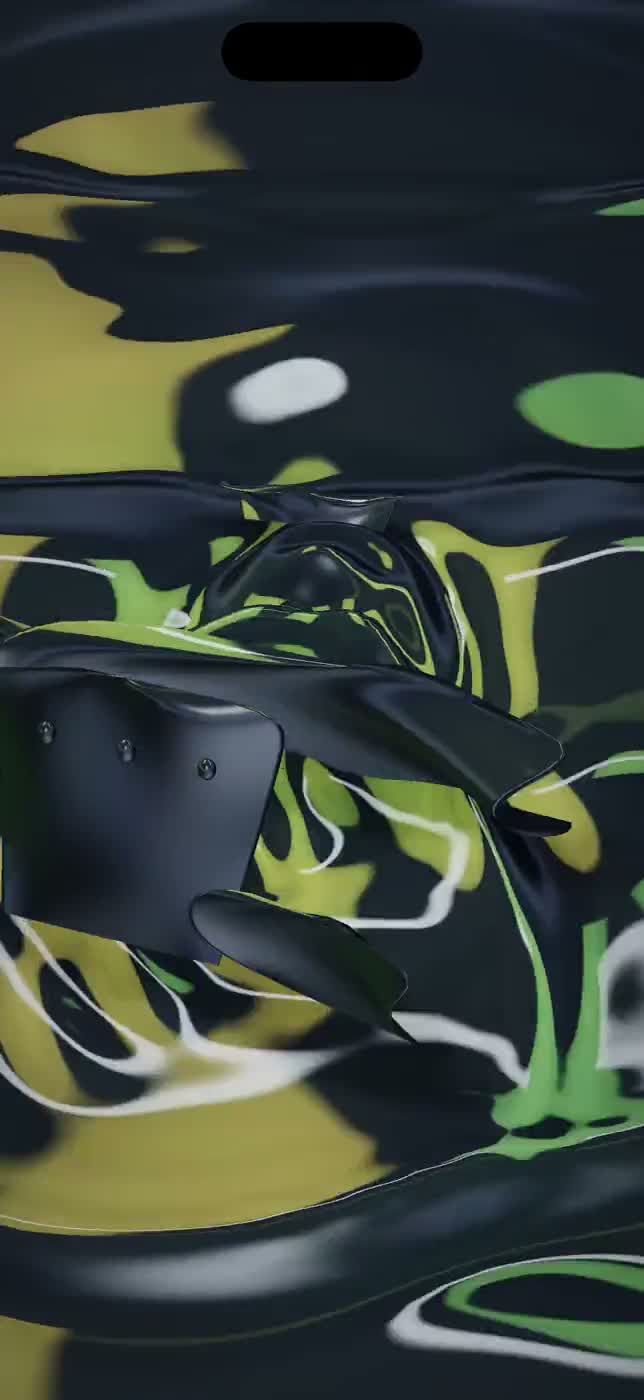
Liquid-metal motion recording

Silent development recording · Motion, not audio synchronization.

Explore light in motion.

Liquid metal moves in this silent full-app recording.

Inspect full recording
About this recording

Silent development recording · Motion, not audio synchronization. This full-app Simulator capture does not establish physical-device performance.

Recorded audio-analysis world

Offline renderer replay · Recorded analysis + original test track

Follow the track’s energy.

Recorded app audio analysis drives this world, paired with the original test sound.

About this recording

Development renderer replay · Original test-track audio. The app’s audio engine analyzed the track; the recorded analysis and matching sound are replayed offline. The test includes quiet passages. This is not a full-app or phone-performance recording.

Explore music in light and motion.

Shape a visual world with touch, palettes and presets. The separate silent liquid-metal recording offers another material to explore.

For exploring a track visually. Use imported music, your microphone or compatible app audio with your broadcast consent; protected playback may be silent.

Watch liquid metal in motion

IOSAMP details

Who it’s for

For exploring music through visual worlds you can shape with touch.

What you can do.

  • Choose a visual world.

    Explore liquid light, particles, fractals and other worlds driven by the music’s energy.

  • Shape it with touch.

    Tap, drag and gesture through touch-reactive visualizers. Each world gives your fingers a different kind of influence.

  • Tune the look.

    Choose palettes and presets, then explore visual controls for the track and the moment.

Watch the recorded scenes

Before you start.

Availability

Release details pending

Store access, pricing and release dates will be added when confirmed.

iPhone + iPad
Explore visual worlds with audio and touch.
Audio input
Play imported music, use your microphone, or choose compatible app audio through the system broadcast picker.
Compatible app audio
The broadcast route requires your consent. IOSAMP also reads visible player text on-device to help identify the track. Protected playback may be silent; it does not support every app.
Recorded evidence
Recorded visual world

Liquid metal in motion.

Silent development recording. It shows motion, not audio synchronization. This full-app Simulator capture does not establish physical-device performance.

Original poster from the silent IOSAMP liquid-metal development recording
Original recording poster · View the complete silent recording
Another world · Audio-analysis replay
Development renderer replay · Original test-track audio. The app’s audio engine analyzed the track; the recorded analysis and matching sound are replayed offline. The test includes quiet passages. This is not a full-app or phone-performance recording.
What this preview shows

Touch Reactor is an existing Simulator development recording with arranged test audio and scripted two-finger gestures. It demonstrates the app renderer and recording pipeline, not human touch or physical-device performance. A separate offline replay uses recorded app audio analysis and the matching original test track; a silent full-app capture shows liquid-metal motion.

Singles tennis · iPhone

The Edge

Make the call. Know the context.

Studio04 / 05

Explore the Phoenix refactor

The call

THE EDGE / The call

A call you can look inside.

See the prediction, the case for it and the strongest counterpoint. Compare the model with the market, then inspect where the call comes from.

The case
Reasoning and counterpoint together.
The context
Market comparison and provenance.

LOCK, LEAN, COIN FLIP or NO CALL. The app makes room for uncertainty.

Development UI · Illustrative data

Development UI · Illustrative data

16 October 2026 · Browser capture · Illustrative data

Cashflow

THE EDGE / Cashflow

Know where every coin went.

Your play-coin bankroll becomes a tactile part of the app. Open Cashflow to see what is available, what is in play and how the balance changed.

Your balance
Available, in play and total.
Your history
Transactions and wager performance.

Coins added stay separate from wager profit and loss. Play coins have no cash value.

Development UI · Illustrative data

Development UI · Illustrative data

16 October 2026 · Browser capture · Illustrative data

Record

THE EDGE / Record

Your calls. In perspective.

Revisit your picks, explore your performance and inspect the model record. Calling skill has its own space, separate from the play-coin bankroll.

Three views
Picks, Performance and Model.
Useful context
Counts, sample size and time window.

Sample sizes, time windows and uncertainty sit beside the numbers. Small samples are labelled.

Development UI · Illustrative data

Development UI · Illustrative data

16 October 2026 · Browser capture · Illustrative data
About these previews

The Phoenix development previews were captured on 16 October 2026. They show actual app UI modules rendered in a browser with synthetic local data. The probabilities, market comparison, play-coin balances and performance record are illustrative, not live predictions, current odds, a real account or verified model performance. Native water, audio, haptics and cinematic reveals are not demonstrated by these stills. Predictions can be wrong. Play coins have no cash value and cannot be withdrawn. 17+.

The call is only the beginning.

Follow your play-coin activity in Cashflow, then open Record to review your calls. Calling skill and the coin balance stay in separate views.

For singles-tennis followers. Predictions can be wrong. Play coins have no cash value and cannot be withdrawn. 17+.

Explore Cashflow

The Edge details

Who it’s for

For tennis followers who want an expressive way to explore predictions and track their calls.

What you can do.

  • Look inside the call.

    Read the predicted outcome, reasoning and counterpoint. Compare the model with the market and inspect the source context. LOCK, LEAN, COIN FLIP and NO CALL describe different situations.

  • Follow every play coin.

    Cashflow separates available coins, coins in play and the total. Inspect transaction history and wager performance; coins added are kept separate from profit and loss.

  • Build your Record.

    Explore Picks, Performance and Model. Review your calls with sample sizes, time windows and uncertainty, separately from your bankroll.

  • Stay with the match.

    Today and Live bring the board, scores and match context together. Club houses personalization, the Field Guide and progression.

Explore the refactored interface

Before you start.

Availability

Release details pending

Store access, pricing and release dates will be added when confirmed.

The app
An iPhone tennis prediction app. Today, Live, Record and Club connect match discovery, prediction context, play-coin activity and personal progress.
Play coins
Coins are for entertainment, have no cash value and cannot be withdrawn. Cashflow tracks coins separately from your calling record. 17+.
The prediction
Model and market information express uncertainty. NO CALL is a valid result. Predictions do not guarantee an outcome.
Recorded evidence
Refactored experience

Three sides of the experience.

Explore the verdict, Cashflow and Record in the Experience view.

The Phoenix development previews were captured on 16 October 2026. They show actual app UI modules rendered in a browser with synthetic local data. The probabilities, market comparison, play-coin balances and performance record are illustrative, not live predictions, current odds, a real account or verified model performance. Native water, audio, haptics and cinematic reveals are not demonstrated by these stills. Predictions can be wrong. Play coins have no cash value and cannot be withdrawn. 17+.

Explore the current interface
What this preview shows

The Phoenix development previews were captured on 16 October 2026. They show actual app UI modules rendered in a browser with synthetic local data. The probabilities, market comparison, play-coin balances and performance record are illustrative, not live predictions, current odds, a real account or verified model performance. Native water, audio, haptics and cinematic reveals are not demonstrated by these stills. Predictions can be wrong. Play coins have no cash value and cannot be withdrawn. 17+.

On-device image tools · New name coming

Image studio

Sketch. Compose. Create on device.

Studio05 / 05

Start with a sketch. Or words.

From a sketch

Color interpretation

From drawing to color.

Recorded on-device · Line-art run · Build 244

Recorded prompt
Digital coloration, vibrant render

Recorded on-device · Line-art development run · Build 244

Photographic interpretation

From drawing to photograph.

Recorded on-device · Realify run · Build 244

Recorded prompt
transform the image to realistic photograph

Recorded on-device · Realify development run · Build 244

Recorded canvas composition

Two references. One composition.

Recorded on-device composition · Development example

Original recorded reference image of a seated fox in a snowy forest
Reference input · FoxInspect
Recorded mirrored version of the same seated fox reference
Reference input · Mirrored foxInspect
Recorded canvas composition with two seated red foxes in a snowy forest clearing
Recorded canvas compositionInspect
Recorded prompt
Two red foxes sitting close together in a snowy forest clearing, one slightly in front of the other, natural winter light, realistic shadows.

Native canvas benchmark · Fox + mirrored fox reference · Build 252

Recorded native benchmark using a fox reference and its mirrored version, with a generated scene and placed subjects. Existing output, not live generation or a filmed current-interface workflow; it does not establish generalized prompt compliance, identity preservation, processing speed or release-device support.

From a written prompt

Written scene. Recorded image.

Recorded on-device text-to-image run · Earlier build 189

From a written prompt · Recorded output
Recorded text-to-image output: a leather-jacketed man beside a lowrider at a neon-lit gas station, with palm trees and wet reflections

Text-to-image development run · No sketch or reference input

RECORDED PROMPT

an eye-level candid shot of a man in a worn leather jacket leaning on a lowrider at a neon-lit gas station at night, palm trees and hills behind, wet asphalt reflections
About these examples

Color and Photo reinterpret one sketch in build 244. Canvas is a separate build-252 native benchmark using a fox reference and its mirrored version, with a generated scene and placed subjects. It is not a filmed current-interface workflow or proof of generalized prompt compliance, identity preservation or processing speed. From words is an earlier build-189 run. Existing outputs, not live generation. Final name and release-device support remain pending.

A sketch is one way in.

Reinterpret a drawing in color or as a photograph, arrange references into a composition, or begin with a written scene. The image models run locally.

For making images from drawings, references or words with local models. Final identity and device support are pending.

Explore the recorded composition

Image studio details

Who it’s for

For developing drawings and reimagining images with local models.

What you can do.

  • Develop a drawing.

    Use a sketch as a starting point for generation and editing, then explore another creative direction.

  • Compose from references.

    Arrange reference images into a composition, then explore a new result with local models.

  • Create from words.

    Describe the image you want to make and develop it with models running on your device.

Explore the recorded outputs

Before you start.

Availability

New identity in development

Store access, pricing and release dates will be added when confirmed.

Local models
Image creation and editing use models running on your device. Supported devices and model requirements are still in development.
New identity
This is the project previously known as KreaPocket. Its final name and branding are pending.
Recorded evidence
Sketch interpretation

One drawing. Another direction.

Recorded on-device interpretation · Build 244.

Source sketch · Detail
Recorded color output · Detail. Select either image to inspect its complete composition.

Line-art development run · Recorded prompt: “Digital coloration, vibrant render”. Existing native output, not live website generation. Final name and release-device support remain pending.

Later prompt-first workspace

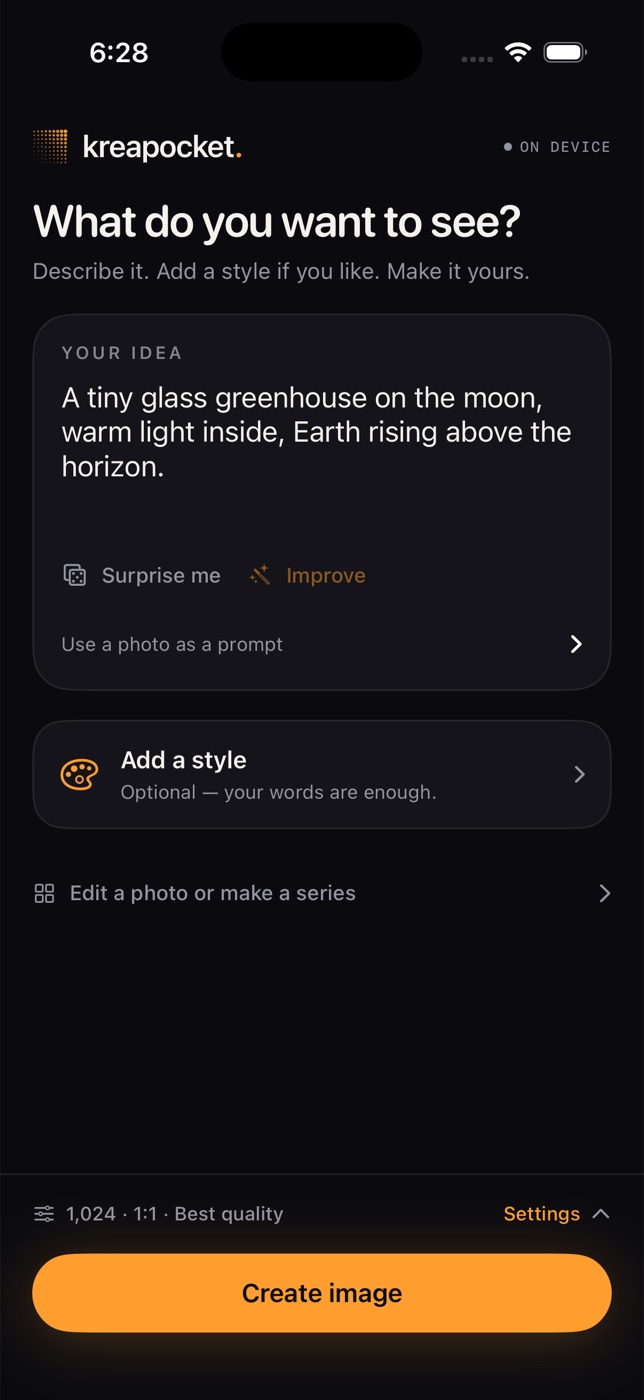
A prompt-first workspace.

Later development interface. Previous KreaPocket name.

Image studio prompt-first development interface under its previous KreaPocket identity
Later development interface · Previous KreaPocket name; final branding pending.
Open full-size screen
Earlier on-device output · Famegrid portrait

Actual on-device output · Earlier development build

Actual on-device generated editorial portrait against a neon-lit street
Actual on-device development output

THE STARTING PROMPT

A confident fashion model in a neon-lit downtown street at night, polished editorial portrait photography, realistic skin texture.

Generated locally with the Famegrid style in a development build. This output comes from an earlier build than the current interface preview; it is not a recording of the current workflow.

What this preview shows

The sketch and two interpretations come from recorded native development runs in build 244. Both receipts identify the same input sketch; the Line-art and Realify runs use different models and recorded prompts. Canvas shows a separate build-252 native benchmark using a fox reference and its mirrored version, with a generated scene and placed subjects. Its complete result is existing output, not a filmed current-interface workflow, proof of generalized prompt compliance, identity preservation, processing speed or release-device support. A separate prompt-first image comes from an earlier build-189 run without a sketch or reference input. These are existing recorded outputs, not live website generation or a claim about release-device support. The earlier Famegrid portrait remains separate evidence. The interface still shows KreaPocket; the final identity is being developed.